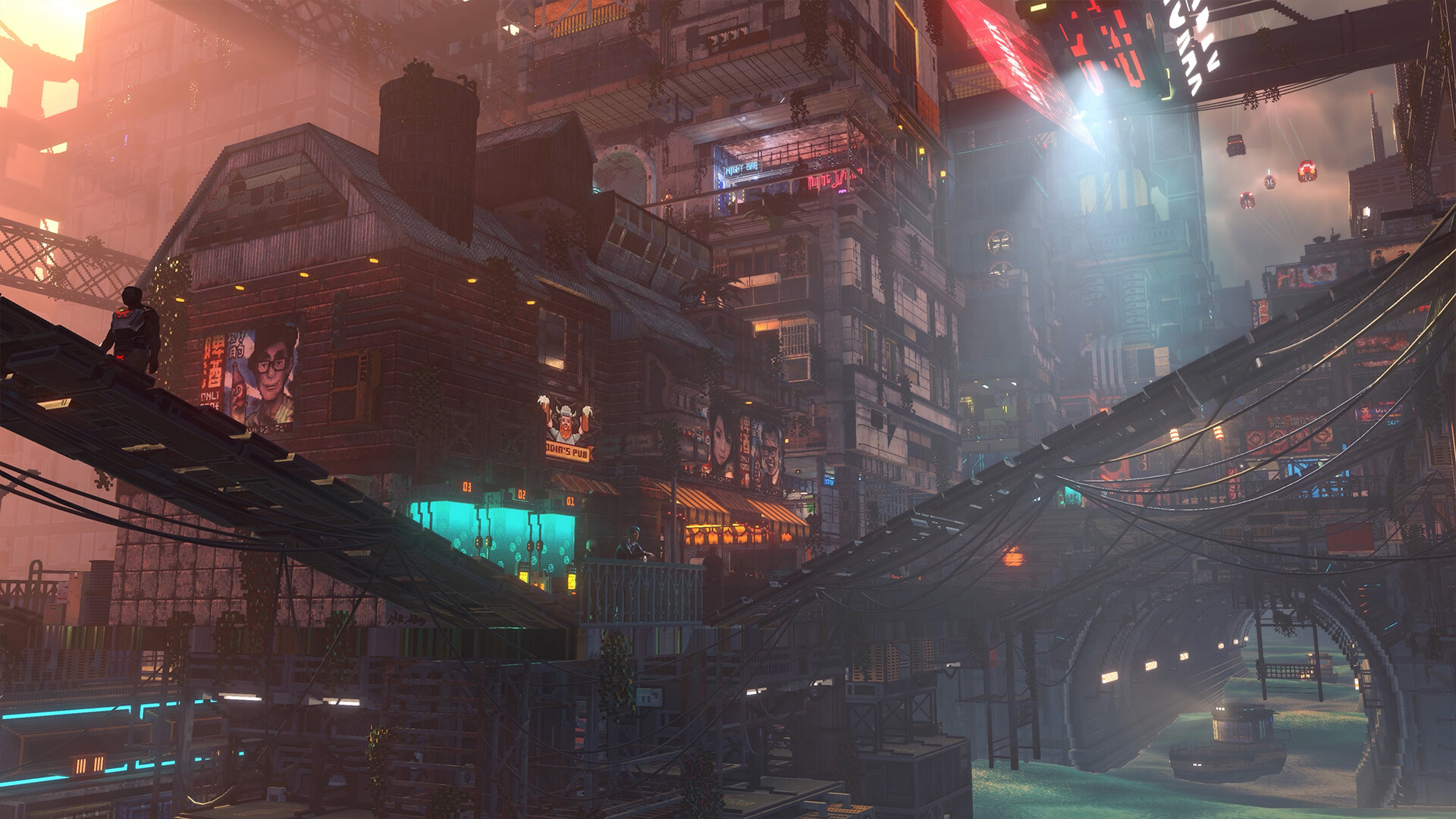
Where to find mods that fit your game update
You can find community-made Nivalis Nights mods on Nexus Mods, including Enhanced Scanner; check the chosen mod author's compatibility instructions against your installed game update before using it. Enhanced Scanner documents compatibility changes after launch, so read its installation and version requirements before downloading.
The developer FAQ says official modding tools are not currently part of the game's scope. Use each mod's own page for its installation and version requirements. Treat the instructions below as an Enhanced Scanner procedure, and follow the author's instructions for any other mod you choose.
Check compatibility and protect your saves
- Check that the mod author supports your installed game update, using the chosen mod's version requirements and compatibility instructions.
- For Enhanced Scanner, obtain the Windows x64 Unity IL2CPP build of BepInEx 6 required by its installation instructions.
- Back up the game's .sav files before modding, keeping your backup separate from the files you use while testing the mod.
- Read the chosen mod's dependency and removal instructions before installing, so you have the author's directions available if you decide to remove it.
Install Enhanced Scanner in the documented order
- Back up your game's .sav files before changing the installation, giving yourself a saved copy of your progress before modding.
- Extract the Windows x64 Unity IL2CPP build of BepInEx 6 beside Nivalis Nights.exe, placing the required loader alongside the game executable.
- Launch the game once after extracting BepInEx, completing the launch required before placing the mod DLL.
- Place the Enhanced Scanner mod DLL in BepInEx/plugins, completing the documented file-placement step.
If the mod does not work or you want to remove it
Return to the chosen mod's compatibility and dependency instructions before trying further changes. For Enhanced Scanner, check the required BepInEx build, the launch-before-DLL order, and the BepInEx/plugins destination against your installation. Verify that the author supports your installed game update before continuing.
If you want to remove a mod, follow that mod author's removal instructions. Read those directions before deleting files, and keep your save backup available while you make changes. After a game update, check the author's compatibility guidance again before resuming modded play.